
Commercial IT hardware & technology supply

Specify the requirement. Source the right technology.

RenewIT Systems supplies computers, workstations, peripherals, displays, servers, storage, networking equipment, collaboration technology, software and complete equipment packages for modern businesses.

  • COMPUTE
  • DISPLAY
  • CONNECT
  • STORE
  • COLLABORATE
  • SOFTWARE

Illustrative procurement configuration

  • COMPUTE Specified around the work
  • DISPLAY To specification
  • CAMERA Where required
  • AUDIO Headset or room
  • NETWORK Compatibility review
  • STORAGE To requirement
  • SOFTWARE Licence by product
  • POWER Adapters and cables
  • INPUT Keyboard and mouse
  • DOCK Where required
QTY By enquiry
LEAD TIME Confirmed per order
STATUS Requirement stage
Text version: illustrative procurement configuration

A central COMPUTE device is routed to nine supporting subsystems. Working clockwise from the upper left: DISPLAY (to specification), CAMERA (where required), AUDIO (headset or room), NETWORK (compatibility review), STORAGE (to requirement), SOFTWARE (licence by product), POWER (adapters and cables), INPUT (keyboard and mouse) and DOCK (where required).

Quantity is by enquiry, lead time is confirmed per order, and the configuration is shown at requirement stage. The diagram is illustrative: it does not represent stock, pricing or a fixed equipment list.

Business technology specified around the environment it needs to work in.

From individual workstation requirements to larger technology refresh programmes, RenewIT Systems helps organisations source equipment around specification, compatibility, quantity, budget and intended use.

The most expensive specification is not automatically the right specification.

Requirement profiling

The machine should match the workload.

Two users in the same building can have entirely different requirements. Before a product is proposed, it helps to understand what the equipment actually has to do.

  • software
  • workload
  • mobility
  • memory
  • storage
  • display needs
  • connectivity
  • peripheral requirements
  • working environment
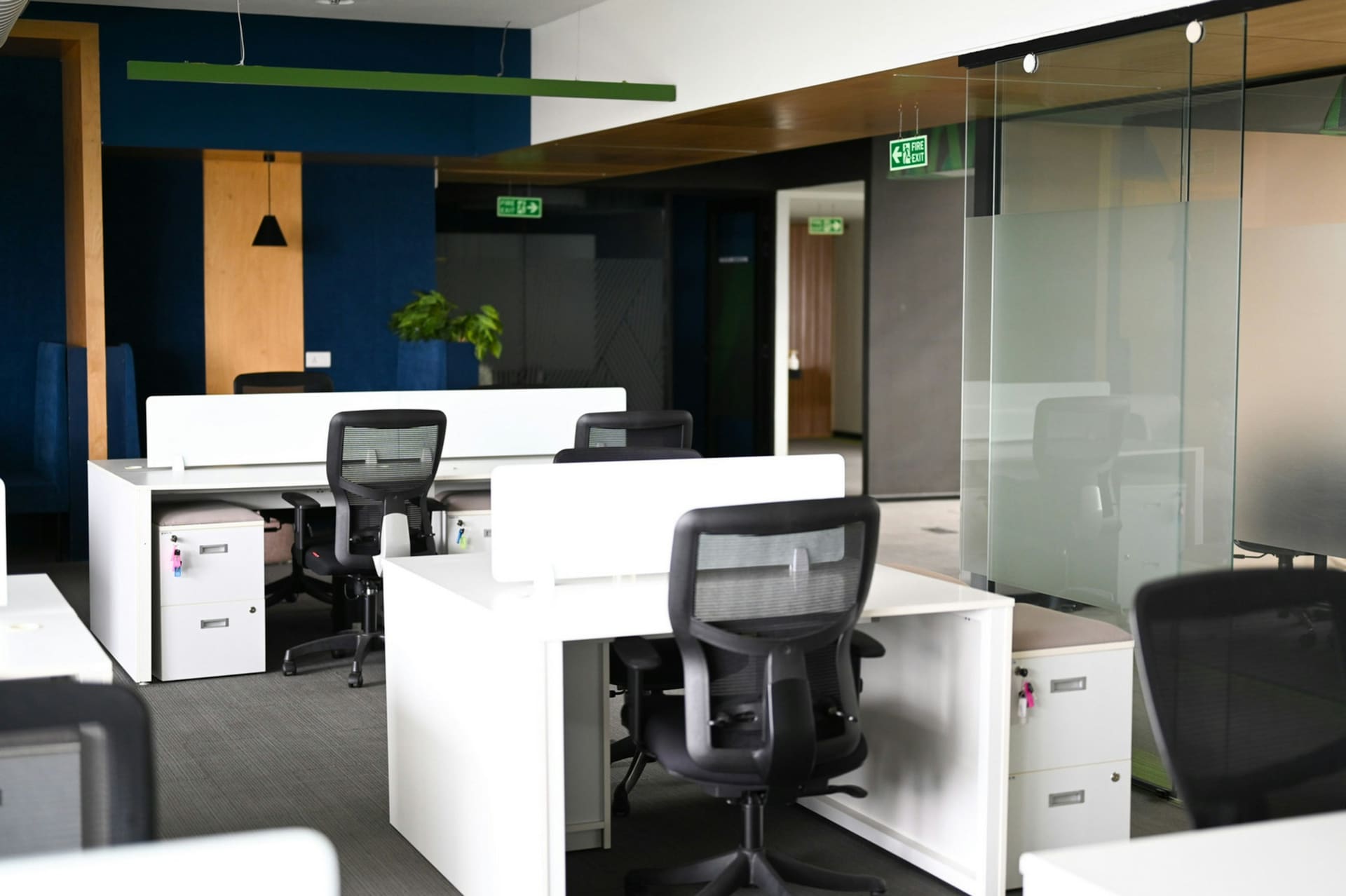
Business technology context: a corporate workspace equipped with computing hardware.

01 GENERAL OFFICE

General office working

Day-to-day documents, email, browser-based systems and calls. The specification is usually shaped by the number of applications open at once, display preference and how long the equipment is expected to stay in service.

  • Software in daily use
  • Display preference
  • Desk-based connectivity
Business technology context: a business laptop in use in an office environment.

02 MOBILE / HYBRID

Mobile and hybrid users

Users moving between a desk, home and client sites. Weight, battery behaviour, docking, port availability and a consistent experience across locations tend to matter more than raw performance.

  • Portability and weight
  • Docking arrangement
  • Home and office parity
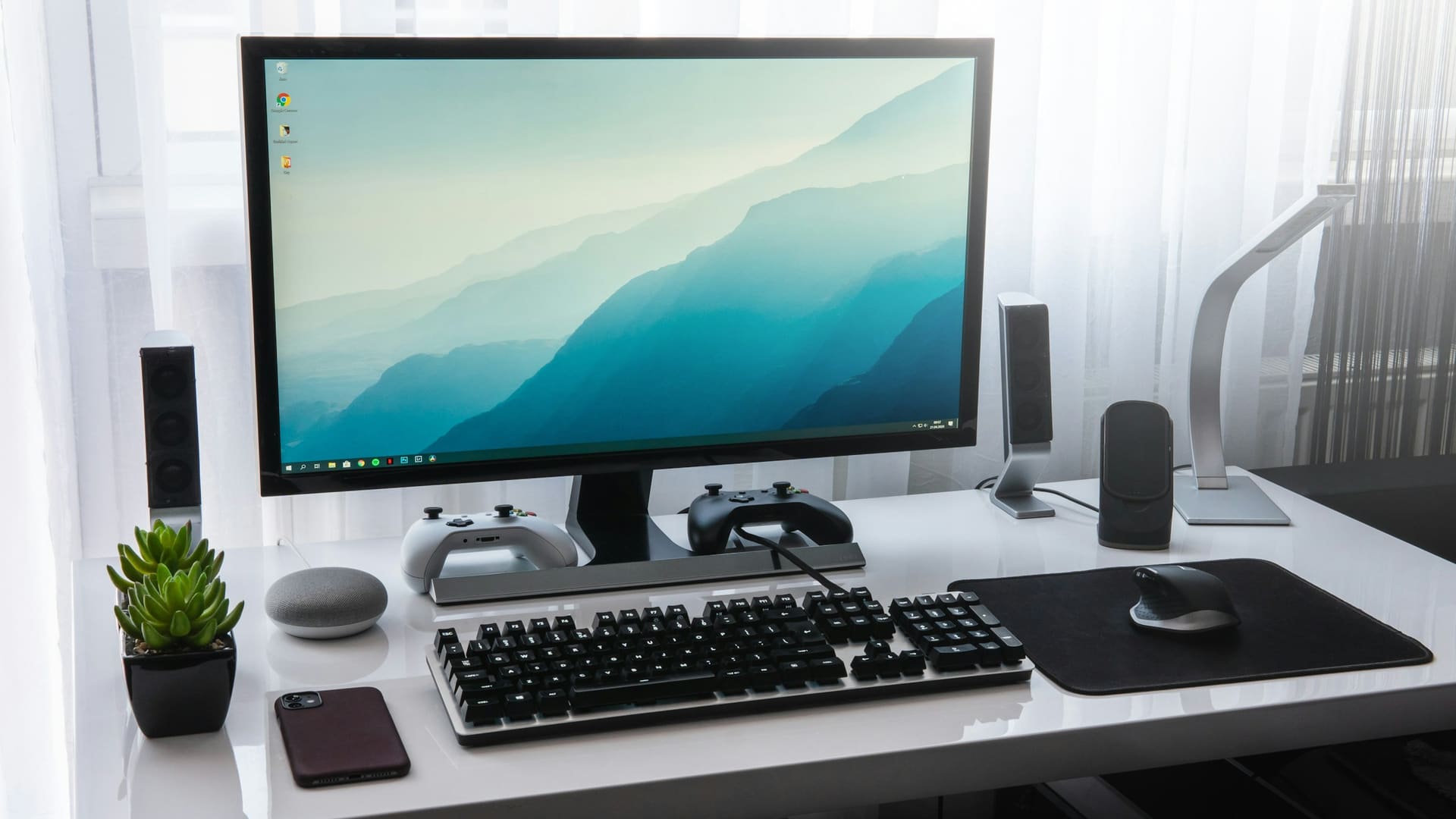
Business technology context: a modern office workstation with a desktop display and keyboard.

03 TECHNICAL

Technical workloads

Development, engineering, data work and applications with published minimum requirements. Memory, storage throughput and sustained performance usually drive the specification.

  • Vendor minimum requirements
  • Memory headroom
  • Storage performance
Professional workstation context: desk monitors arranged for multi-screen working.

04 WORKSTATION

Workstation-class use

Sustained, demanding workloads where the working environment, display arrangement, graphics requirement and peripheral set are all part of the specification rather than afterthoughts.

  • Graphics requirement
  • Multi-display support
  • Working environment

System architecture

The technology stack

Each layer connects into the one below it. A decision made at the compute layer changes what is possible at the display, connectivity and software layers — which is why they are specified together rather than bought separately.

  1. 01 COMPUTE

    The device the work runs on

    Desktops, business PCs, laptops and workstation-class systems, selected around the applications actually in use.

    Computers & laptops
  2. 02 DISPLAY

    What the user actually looks at

    Single or multi-screen arrangements chosen around desk space, resolution, connectivity and the way the role is worked.

    Displays & peripherals
  3. 03 CONNECT

    How the device reaches everything else

    Docking, cabling, adapters, switching and wireless — the layer that decides whether the rest of the stack cooperates.

    Networking equipment
  4. 04 STORE

    Where data lives and stays available

    Server hardware, network storage, drives and backup hardware sized against capacity, workload and resilience requirements.

    Servers & storage
  5. 05 COLLABORATE

    Rooms and remote participants

    Cameras, video bars, microphones, speakers, controllers and room displays matched to room size and meeting style.

    Collaboration & meeting rooms
  6. 06 PRINT

    The physical document layer

    Printers, multifunction devices, scanners and related document hardware for the parts of the workplace that stay physical.

    Printers & office technology
  7. 07 SOFTWARE

    What the hardware has to run

    Productivity, collaboration, communication, security, management and general business software, supplied to the licence requirement.

    Software solutions
Text version: technology stack

Seven connected layers, top to bottom: 01 COMPUTE, 02 DISPLAY, 03 CONNECT, 04 STORE, 05 COLLABORATE, 06 PRINT, 07 SOFTWARE. Each layer links to its own equipment page and lists the three attributes that most often shape its specification.

Equipment packages

One role. One requirement. One coordinated equipment package.

Most equipment problems are not caused by the wrong computer. They are caused by a computer that arrives without the dock, cable, display or headset that the role actually needed. A package is specified as one unit.

Workstation package — line items

Illustrative package — final equipment subject to quotation

Ref Element Requirement Qty Status
PKG-01 COMPUTE Laptop, desktop or workstation depending on requirement 1 By enquiry
PKG-02 DISPLAY Single or multiple depending on use 1–3 By enquiry
PKG-03 DOCK Where required 0–1 To review
PKG-04 INPUT Keyboard and mouse 1 set By enquiry
PKG-05 AUDIO Headset or speaker requirement 0–1 To review
PKG-06 CAMERA Where required 0–1 To review
PKG-07 STORAGE Where required By requirement To review
PKG-08 CONNECTIVITY Reviewed against the environment — To review
PKG-09 ACCESSORIES Adapters, cables and related peripherals By requirement By enquiry

Quantities, models, specifications and lead times are confirmed individually. Nothing shown here is priced, held in stock or reserved.

Text version: illustrative workstation package

Nine package elements are listed with a reference, requirement description, indicative quantity and review status: PKG-01 compute (1, by enquiry); PKG-02 display (1–3, by enquiry); PKG-03 dock (0–1, to review); PKG-04 input set (1, by enquiry); PKG-05 audio (0–1, to review); PKG-06 camera (0–1, to review); PKG-07 storage (by requirement, to review); PKG-08 connectivity (to review); PKG-09 accessories (by requirement, by enquiry).

Business computing

Business computing without the consumer-shop noise.

Consumer retail sells the headline number. Commercial supply has to answer a duller and more useful question: what will this machine be asked to do, by whom, in what environment, for how long?

  • Desktops
  • Business PCs
  • Laptops
  • Notebooks
  • Workstation-class systems
  • Professional computing equipment
Computers & laptops
Business technology context: a business laptop on a desk in a professional office.
Business technology context

Requirement factors

  • INTENDED WORKLOAD What the machine is actually being bought to do, all day, for the next few years.
  • PERFORMANCE Sustained capability against the applications in use, not a benchmark figure.
  • MEMORY Headroom for how the role really works, including everything left open.
  • STORAGE Capacity and interface, plus where the data actually lives.
  • MOBILITY Desk-bound, hybrid or genuinely mobile — each changes the answer.
  • CONNECTIVITY Ports available on the device against ports the role needs.
  • OPERATING ENVIRONMENT Where the equipment lives and what it shares space with.
  • COMPATIBILITY What it has to work with on day one, confirmed rather than assumed.

Display environments

The display is part of the workstation.

A display is not an accessory bought after the computer. It changes the port requirement, the dock requirement, the desk footprint and often the specification of the machine driving it.

  • 1 SCREEN

    A focused desk position, or a mobile user who docks occasionally.

  • 2 SCREENS

    The most common office arrangement where two sources are referenced side by side.

  • 3+ SCREENS

    Operational and monitoring roles. Requires confirmed multi-display support.

  • MEETING ROOM

    A shared surface sized to the room and the distance people sit from it.

  • TECHNICAL / CREATIVE

    Where colour behaviour, resolution and connectivity carry specific requirements.

Selection factors

  • SIZE Physical dimensions against available desk depth.
  • RESOLUTION Working resolution and scaling behaviour.
  • CONNECTIVITY Available outputs on the device and cable route.
  • ERGONOMICS Height, tilt, arm or stand requirement.
  • COLOUR REQUIREMENTS Where output accuracy matters to the role.
  • WORKLOAD What is on screen for most of the working day.
  • DESK SPACE Footprint, shared desks and hot-desking.
  • MULTI-DISPLAY SUPPORT Confirmed against the device, not assumed.
Professional workstation context: desk monitors arranged for multi-screen working.
Professional workstation context
Text version: display arrangements

Five footprint diagrams show display arrangements on a desk: a single display; two displays angled inward; three or more displays across the desk width; a single large room display; and a technical or creative arrangement pairing a wide display with a vertically oriented one.

Eight selection factors are listed alongside: size, resolution, connectivity, ergonomics, colour requirements, workload, desk space and multi-display support.

Infrastructure hardware

Infrastructure starts with capacity, workload & resilience requirements.

Server and storage hardware is rarely bought in isolation. What it connects to, what it has to sustain and what happens when a component fails all sit inside the specification.

  1. 01 COMPUTE

    Server hardware sized to the workload it has to carry.

    • Servers
    • Server components
  2. 02 STORAGE

    Capacity, throughput and resilience requirements.

    • NAS
    • SSD storage
    • Hard drives
    • Backup hardware
  3. 03 NETWORK

    The path between storage and the people using it.

    • Switching
    • Uplinks
    • Cabling
  4. 04 CLIENT DEVICES

    What actually reads and writes the data day to day.

    • Workstations
    • Laptops
    • Shared devices
Text version: infrastructure architecture

A four-stage chain runs left to right: 01 COMPUTE (servers and server components), 02 STORAGE (NAS, SSD storage, hard drives, backup hardware), 03 NETWORK (switching, uplinks, cabling) and 04 CLIENT DEVICES (workstations, laptops, shared devices). Each stage feeds the next.

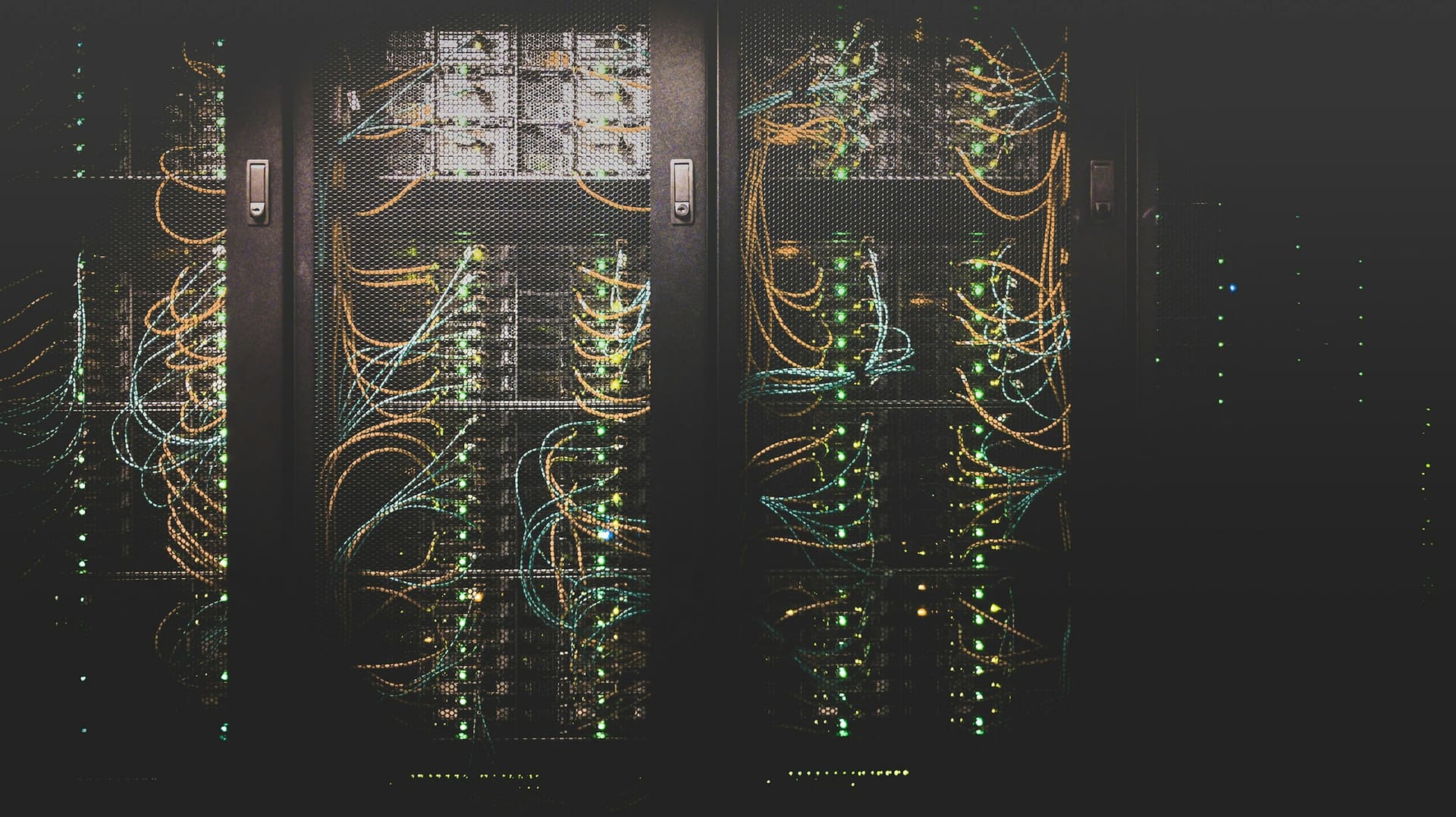
Server hardware context: equipment mounted in a rack.
Server hardware context
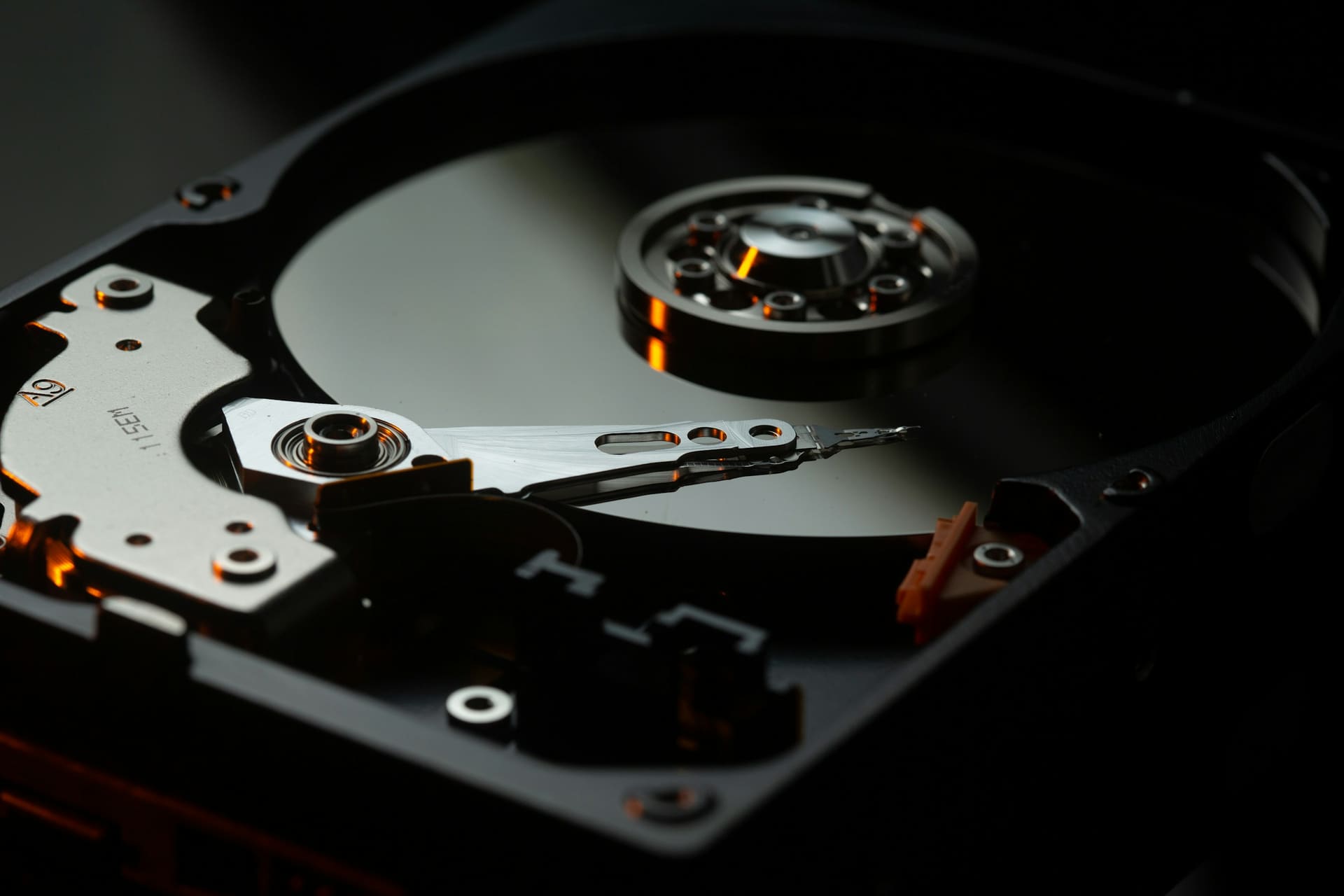
Server hardware context: the internals of a hard disk drive.
Storage hardware context

Connectivity hardware

Build the connection path.

Every device on the diagram below changes the requirement for the one above it. Port count, speed, uplink and wireless density are decided by what is actually connecting — not by the size of the building.

Connection path

  1. WAN Incoming service
  2. GATEWAY Routing and edge
  3. SWITCHING Port count and speed
  4. WIRELESS Coverage and density
  5. ENDPOINT Devices in use
  • SERVER Uplink requirement
  • STORAGE Throughput requirement
  • MEETING ROOM Room connectivity
  • WORKSTATIONS Device count
Text version: connection path

A vertical spine runs top to bottom: WAN (incoming service), GATEWAY (routing and edge), SWITCHING (port count and speed), WIRELESS (coverage and density) and ENDPOINT (devices in use).

Four branches connect off that spine: SERVER (uplink requirement), STORAGE (throughput requirement), MEETING ROOM (room connectivity) and WORKSTATIONS (device count). The topology is conceptual context for product selection.

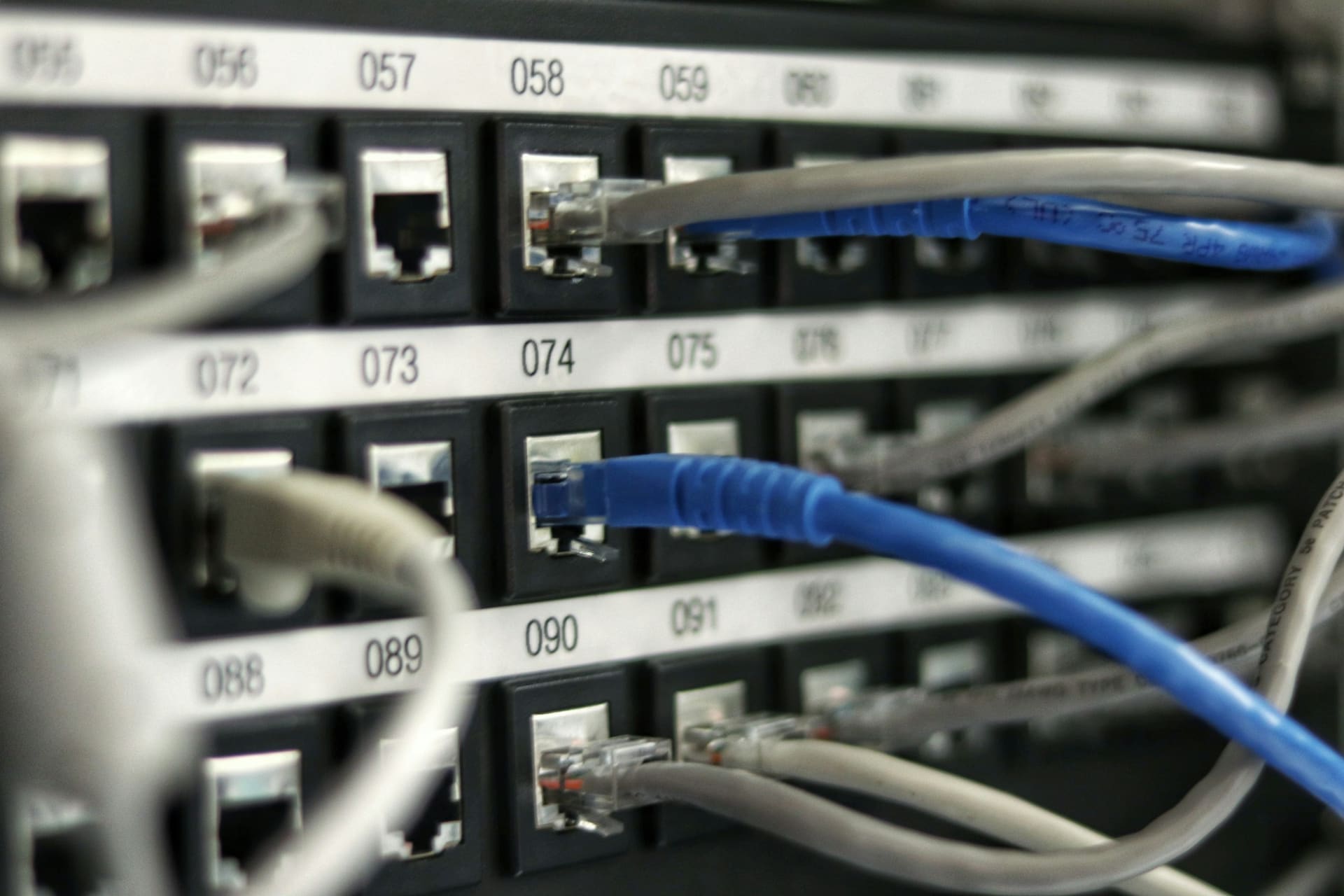
Networking equipment context: a switch mounted in a communications rack.
Networking equipment context
Networking equipment context: a wireless access point installed in an office ceiling.
Wireless coverage context

Room technology

Make the room work for the people in it — and the people connecting remotely.

Room equipment is judged by the person who dialled in from somewhere else. Camera coverage, audio pickup and how a meeting is actually started matter more than the specification sheet.

Room architecture

Conceptual equipment configuration
DISPLAY Sized to the room and viewing distance.
CAMERA Field of view against seating layout.
MICROPHONE Pickup range and table arrangement.
SPEAKERS Intelligibility at the back of the room.
VIDEO BAR Where a combined unit suits the space.
CONTROLLER How people actually start a meeting.
CONNECTIVITY Table inputs, cabling and network path.
Text version: meeting room architecture

A conceptual room plan positions seven elements around a meeting table: DISPLAY at the front wall, CAMERA below it, then MICROPHONE, VIDEO BAR and SPEAKERS across the middle of the room, with CONTROLLER and CONNECTIVITY at the table position. Each is annotated with the factor that usually decides it.

Collaboration environment: colleagues working around a laptop in a meeting.
Collaboration environment
  • MEETING ROOMS Small and medium rooms used all day.
  • HYBRID TEAMS Rooms where half the participants are remote.
  • TRAINING SPACES Rooms where everyone needs to see and hear.
  • BOARDROOMS Larger rooms with a formal seating plan.

Peripheral ecosystem

The smaller components still have to fit the system.

Adapters, cables and docks are the items most often left off a requirement — and the items most likely to stop a new machine being usable on day one.

  • compatibility
  • connectivity
  • role
  • working style
  • port requirements
  • device compatibility
USER Role, environment, working style
KEYBOARD Layout, wired or wireless
MOUSE Grip, precision, hand
DOCK Ports the device lacks
HEADSET Calls and shared offices
WEBCAM Where not built in
SPEAKERS Shared or personal audio
STORAGE External capacity
ADAPTERS Interface conversion
CABLES Length, standard, routing
Professional workstation context: a laptop connected to desk peripherals through a hub.
Professional workstation context
  • KEYBOARD Layout, wired or wireless
  • MOUSE Grip, precision, hand
  • DOCK Ports the device lacks
  • HEADSET Calls and shared offices
  • WEBCAM Where not built in
  • SPEAKERS Shared or personal audio
  • STORAGE External capacity
  • ADAPTERS Interface conversion
  • CABLES Length, standard, routing
Text version: peripheral ecosystem

A radial diagram places USER at the centre — defined by role, environment and working style — with nine connected peripherals around it: keyboard (layout, wired or wireless), mouse (grip, precision, hand), dock (ports the device lacks), headset (calls and shared offices), webcam (where not built in), speakers (shared or personal audio), storage (external capacity), adapters (interface conversion) and cables (length, standard, routing).

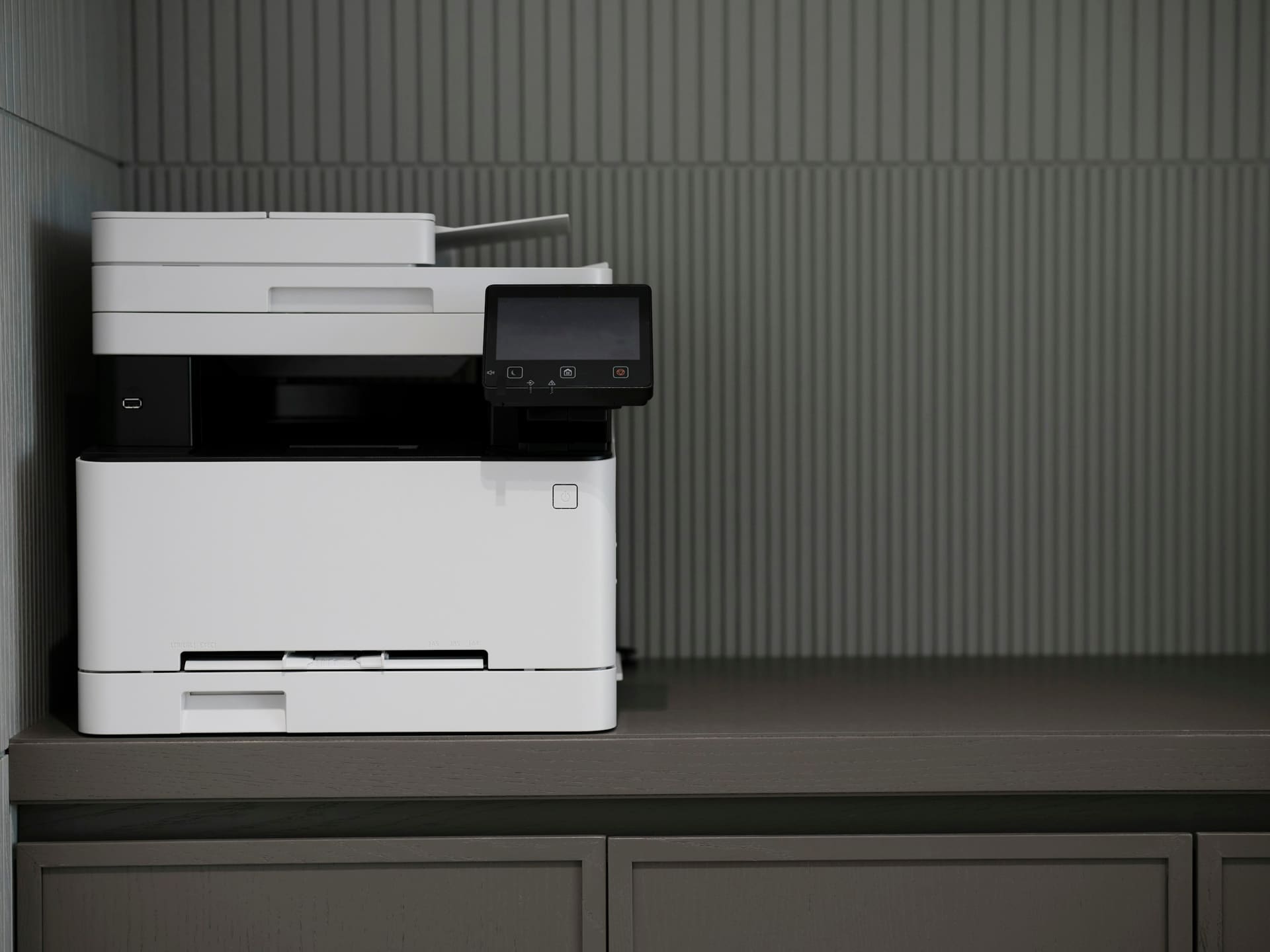
Business technology context: a multifunction copier in a workplace.
Business technology context

Office technology

The office still needs physical technology.

Print volumes have fallen in most organisations and disappeared in almost none. The equipment is chosen around what is actually produced, where it is produced and who needs to reach it.

  • PRINTERS Desktop and workgroup devices selected around expected volume and where they sit.
  • MULTIFUNCTION DEVICES Combined print, copy and scan units for shared areas.
  • SCANNERS Dedicated document capture where scanning is a real part of the workflow.
  • DOCUMENT EQUIPMENT Supporting hardware for handling paper records and physical files.
  • RELATED OFFICE TECHNOLOGY The practical equipment a working office still needs in place.
Printers & office technology

Components & upgrades

Upgrade the component. Not automatically the whole machine.

A machine that has become slow is not always a machine that needs replacing. It is equally possible that it cannot accept the upgrade at all — which is why the existing system is reviewed before anything is proposed.

Exploded system view

Conceptual equipment configuration
  1. 01 CHASSIS Physical space, mounting points, airflow
  2. 02 POWER Supply capacity, connectors, headroom
  3. 03 MOTHERBOARD Sockets, interfaces, firmware support
  4. 04 PROCESSOR Socket compatibility and cooling
  5. 05 MEMORY Type, configuration, supported capacity
  6. 06 STORAGE Interface, form factor, existing data
  7. 07 GRAPHICS Slot, length, power and output requirement
  8. 08 EXPANSION Networking and interface cards
Text version: exploded system view

Eight component layers are separated in sequence, each annotated with the constraint that governs it: 01 chassis (physical space, mounting points, airflow); 02 power (supply capacity, connectors, headroom); 03 motherboard (sockets, interfaces, firmware support); 04 processor (socket compatibility and cooling); 05 memory (type, configuration, supported capacity); 06 storage (interface, form factor, existing data); 07 graphics (slot, length, power and output requirement); 08 expansion (networking and interface cards).

Software supply

The hardware still has to run the right software.

Software is where a hardware specification is often decided. Minimum requirements, licence counts and whether a licence follows the user or the device all shape what should be supplied.

  • 01 PRODUCTIVITY

    Documents, spreadsheets, presentations and the everyday tools a role depends on.

    • USERS
    • DEVICES
    • LICENCE TERM
  • 02 COLLABORATION

    Shared working, file access and the platforms teams coordinate through.

    • USERS
    • STORAGE
    • ACCESS MODEL
  • 03 COMMUNICATION

    Meetings, calls and messaging, including the hardware they have to run on.

    • USERS
    • DEVICES
    • ROOM LICENCES
  • 04 SECURITY

    Endpoint and access-related software licensed per user or per device.

    • DEVICES
    • COVERAGE
    • RENEWAL
  • 05 SYSTEM MANAGEMENT

    Tools used to manage, inventory and maintain a set of devices.

    • DEVICES
    • SCOPE
    • TERM
  • 06 BUSINESS SOFTWARE

    General commercial applications with their own compatibility requirements.

    • USERS
    • PLATFORM
    • SUPPORT TERM
Business technology context: a professional laptop in an office setting.
Business technology context

Procurement framework

Procurement should start with the requirement.

Working backwards from a product to a justification is how organisations end up with equipment that technically works and practically does not. The sequence below runs the other way.

Procurement control — sequence

Requirement stage
  1. REQUIREMENT

    What does the business need?

    Users, roles, quantities, timeframe and the operational reason the equipment is needed at all.

    • USERS
    • ROLES
    • TIMEFRAME
  2. SPECIFICATION

    What specification fits?

    Performance, capacity, connectivity and quantity translated into something that can actually be sourced.

    • PERFORMANCE
    • CAPACITY
    • CONNECTIVITY
    • QTY
  3. SOURCE

    What is available?

    Identify suitable equipment that is genuinely available against the specification and timeframe.

    • AVAILABILITY
    • LEAD TIME
  4. COMPARE

    Is there a better fit?

    Review alternatives where appropriate, including where a lower specification is the correct answer.

    • ALTERNATIVE
    • TRADE-OFF
  5. CONFIRM

    What exactly is being bought?

    Model, price, quantity, lead time and warranty where applicable, confirmed in writing before anything proceeds.

    • MODEL
    • QTY
    • LEAD TIME
    • WARRANTY
  6. SUPPLY

    How does it arrive?

    Coordinate the confirmed order and the agreed delivery arrangements for that order.

    • ORDER
    • DELIVERY

Nothing is treated as agreed until the confirmation stage. Quantities, models and lead times shown anywhere on this site are illustrative.

Business technology context: a planning session reviewing equipment requirements.
Business technology context
Text version: procurement sequence

01 REQUIREMENT — What does the business need? Users, roles, quantities, timeframe and the operational reason the equipment is needed at all. 02 SPECIFICATION — What specification fits? Performance, capacity, connectivity and quantity translated into something that can actually be sourced. 03 SOURCE — What is available? Identify suitable equipment that is genuinely available against the specification and timeframe. 04 COMPARE — Is there a better fit? Review alternatives where appropriate, including where a lower specification is the correct answer. 05 CONFIRM — What exactly is being bought? Model, price, quantity, lead time and warranty where applicable, confirmed in writing before anything proceeds. 06 SUPPLY — How does it arrive? Coordinate the confirmed order and the agreed delivery arrangements for that order.

Technology refresh

Replace what has aged.
Keep what still works.

A refresh programme that replaces everything on the same date is usually replacing a quantity of equipment that did not need replacing. Reviewing by requirement is slower to plan and considerably cheaper to buy.

  1. 01 CURRENT ENVIRONMENT What is in place now, and what is actually causing the problem.
  2. 02 REQUIREMENT What the role needs the equipment to do next.
  3. 03 REPLACEMENT What genuinely needs replacing, and what does not.
  4. 04 STANDARD A repeatable specification where one makes sense.
  5. 05 SUPPLY Confirmed equipment, confirmed quantity, confirmed order.

Categories typically reviewed

  • LAPTOPS
  • DESKTOPS
  • MONITORS
  • STORAGE
  • SERVERS
  • NETWORKING
  • MEETING ROOMS
  • PERIPHERALS
Business technology context: a team working at desks equipped with computers.
Business technology context
Text version: refresh sequence

A five-stage sequence: CURRENT ENVIRONMENT (what is in place now, and what is actually causing the problem), REQUIREMENT (what the role needs the equipment to do next), REPLACEMENT (what genuinely needs replacing, and what does not), STANDARD (a repeatable specification where one makes sense) and SUPPLY (confirmed equipment, quantity and order).

Categories typically reviewed: laptops, desktops, monitors, storage, servers, networking, meeting rooms and peripherals.

Multi-unit supply

Specify once. Procure at the quantity the business requires.

Once a standard package is agreed, the difficult part is done. Repeating it is a question of quantity, availability and timing rather than a new specification exercise each time.

  • NEW STARTERS Equipment needed for people joining.
  • DEPARTMENT EXPANSION A team growing beyond its current equipment.
  • OFFICE OPENING A location that needs equipping from nothing.
  • REFRESH PROGRAMME A planned replacement across a group of users.
  • MULTI-UNIT REPLACEMENT The same item required several times over.
  • STANDARD WORKSTATION PACKAGE One agreed build, repeated.
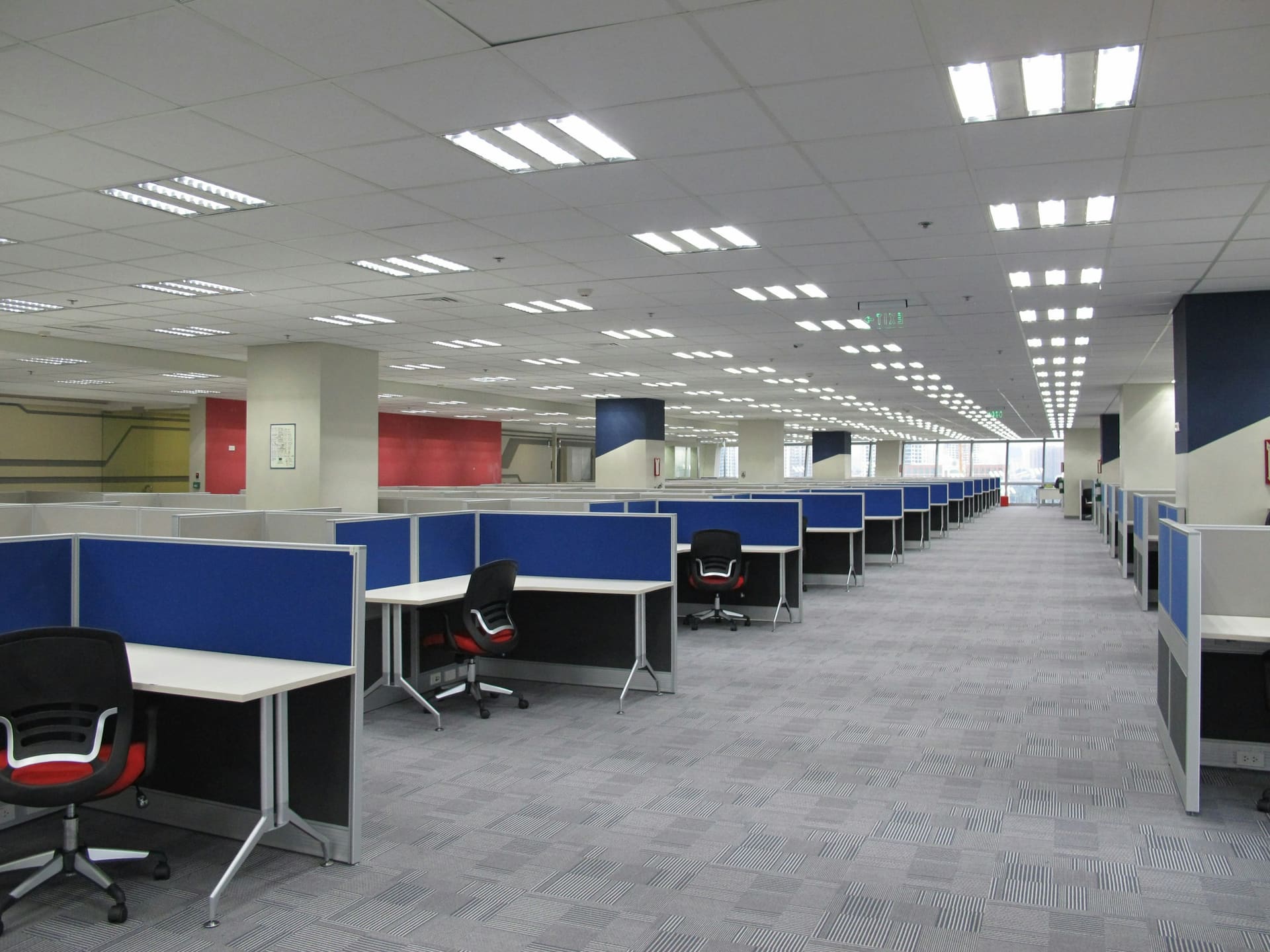
Business technology context: rows of workstations in an open-plan office.
Business technology context

Quantity planning

Illustrative quantity planning — not pricing

  • 10 USERS By enquiry

    A single team or department.

  • 25 USERS By enquiry

    A floor, function or new location.

  • 50 USERS By enquiry

    A larger programme, usually phased.

  • CUSTOM QUANTITY By enquiry

    Whatever the business actually requires.

The blocks above represent units of a standard package for planning purposes only. There is no pricing, discount structure, stock allocation or availability commitment associated with any quantity shown.

Text version: quantity planning

Four illustrative planning tiers are shown, each marked "by enquiry": 10 users (a single team or department), 25 users (a floor, function or new location), 50 users (a larger programme, usually phased) and a custom quantity (whatever the business actually requires). Quantity blocks are a planning visual only and carry no pricing, discount or stock meaning.

Compatibility before purchase

The right part is the part that fits the environment.

A product may be technically capable but still unsuitable for the actual environment. Compatibility should be confirmed before purchase — not discovered after delivery.

  • HARDWARE

    Does it physically fit and interoperate?

    • Form factor
    • Interfaces
    • Existing system
  • SOFTWARE

    Will the applications actually run on it?

    • Minimum requirements
    • Operating environment
    • Licensing
  • PORTS

    Can everything connect without an adapter chain?

    • Port types
    • Port count
    • Display outputs
  • POWER

    Is there enough supply, and the right connector?

    • Supply capacity
    • Connector type
    • Headroom
  • NETWORK

    Does the connection path support it?

    • Speed
    • Uplink
    • Device count
  • PHYSICAL SPACE

    Does it fit where it has to live?

    • Desk or rack space
    • Depth and mounting
    • Access
  • WORKLOAD

    Will it hold up under actual use?

    • Sustained demand
    • Concurrency
    • Expected lifespan
  • OPERATING ENVIRONMENT

    Are the conditions around it suitable?

    • Ventilation and heat
    • Noise
    • Shared or public space
Text version: compatibility dimensions

Eight compatibility dimensions are reviewed before purchase, each with three checks: hardware (form factor, interfaces, existing system); software (minimum requirements, operating environment, licensing); ports (port types, port count, display outputs); power (supply capacity, connector type, headroom); network (speed, uplink, device count); physical space (desk or rack space, depth and mounting, access); workload (sustained demand, concurrency, expected lifespan); and operating environment (ventilation and heat, noise, shared or public space).

Procurement transparency

Six things a quotation should make unambiguous.

Most procurement disputes come from something that was assumed rather than stated. These six fields are confirmed in writing for every quotation.

  • 01

    MODEL & SPECIFICATION

    What is actually being supplied, stated as a specific model and specification rather than a category.

  • 02

    QUANTITY

    How many units the quotation covers, and what happens if that number changes.

  • 03

    COMPATIBILITY

    What the equipment has been reviewed against, and what remains the customer’s responsibility to confirm.

  • 04

    AVAILABILITY

    Whether the item is obtainable against the required timeframe, and how long that position holds.

  • 05

    WARRANTY WHERE APPLICABLE

    The manufacturer or supplier terms attached to the specific product, stated rather than implied.

  • 06

    DELIVERY ARRANGEMENTS

    What has been agreed for that order, confirmed individually rather than promised in advance.

Technology enquiry

What does the business need to equip?

Tell us about the users, workloads, equipment, quantities, compatibility requirements and timeframe.

  • USERS
  • WORKLOAD
  • EQUIPMENT
  • QTY
  • COMPATIBILITY
  • TIMEFRAME

[email protected]