
Technology / 03
The workstation doesn’t end at the computer.
Displays, docks, input devices, audio, adapters and cables decide whether a new machine is usable on the morning it arrives. They belong in the specification, not in a follow-up order.
- MONITORS
- DOCKS
- INPUT
- AUDIO
- ADAPTERS
- CABLES
Coverage
Eleven categories, one connected system.
Peripherals fail quietly: the wrong cable, a dock that cannot drive a second screen, an adapter that was never ordered. Reviewing them as a set avoids most of it.
- MONITORS Single displays selected around size, resolution and desk depth.
- MULTI-SCREEN ENVIRONMENTS Two or more displays, confirmed against what the device can actually drive.
- KEYBOARDS Layout, connection method and shared or personal use.
- MICE Precision, grip and all-day comfort.
- DOCKING STATIONS One connection carrying power, display and peripherals.
- WEBCAMS Where the built-in camera is not adequate for the role.
- HEADSETS Call clarity in open-plan and shared environments.
- SPEAKERS Personal and small-room audio.
- ADAPTERS Interface conversion between old and new standards.
- CABLES Standard, length and routing — the most commonly forgotten item.
- EXTERNAL STORAGE Portable and desk-side capacity where required.

Display environments
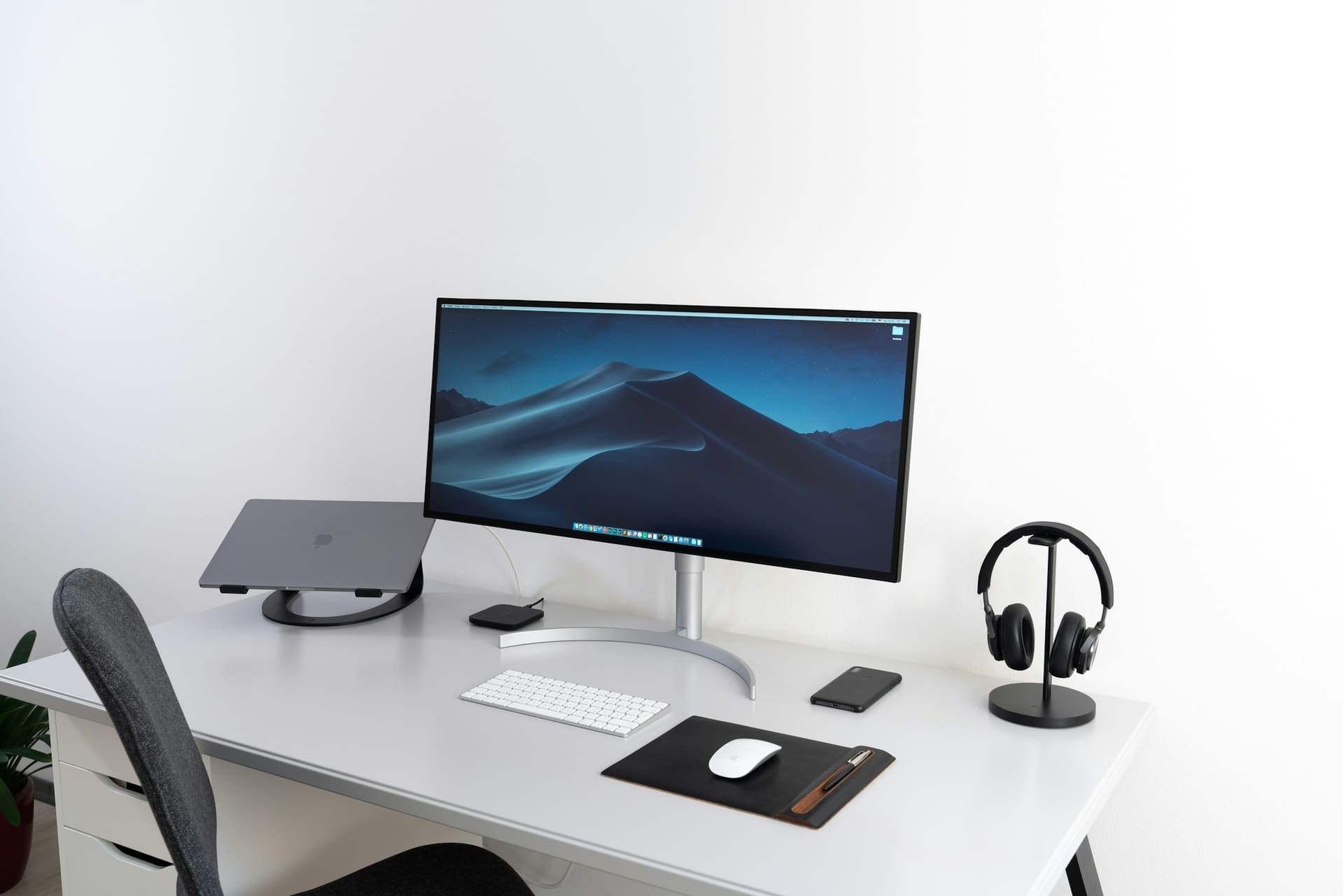
The display is part of the workstation.
A display is not an accessory bought after the computer. It changes the port requirement, the dock requirement, the desk footprint and often the specification of the machine driving it.
-
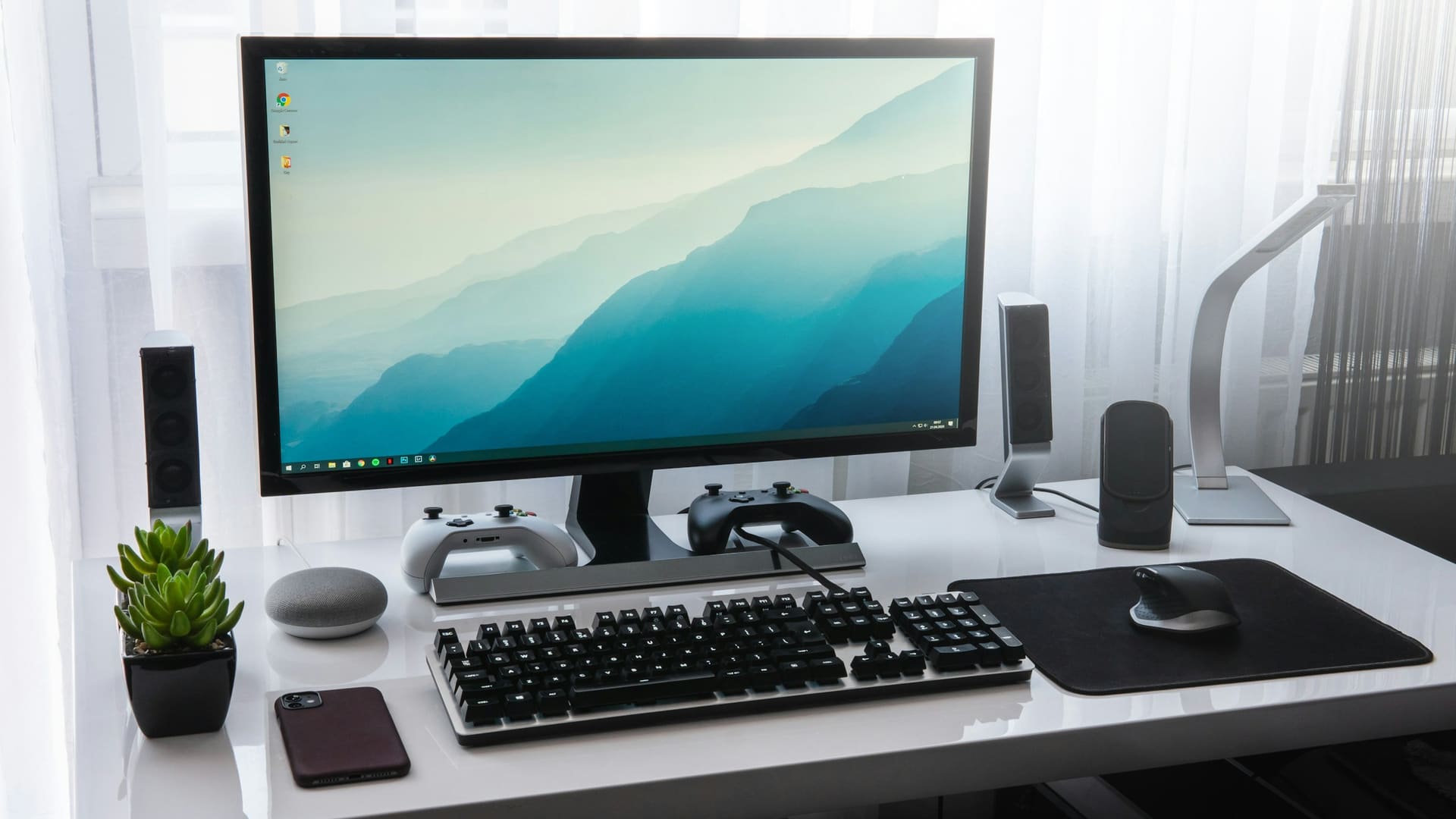
1 SCREEN
A focused desk position, or a mobile user who docks occasionally.
-
2 SCREENS
The most common office arrangement where two sources are referenced side by side.
-
3+ SCREENS
Operational and monitoring roles. Requires confirmed multi-display support.
-
MEETING ROOM
A shared surface sized to the room and the distance people sit from it.
-
TECHNICAL / CREATIVE
Where colour behaviour, resolution and connectivity carry specific requirements.
Selection factors
- SIZE Physical dimensions against available desk depth.
- RESOLUTION Working resolution and scaling behaviour.
- CONNECTIVITY Available outputs on the device and cable route.
- ERGONOMICS Height, tilt, arm or stand requirement.
- COLOUR REQUIREMENTS Where output accuracy matters to the role.
- WORKLOAD What is on screen for most of the working day.
- DESK SPACE Footprint, shared desks and hot-desking.
- MULTI-DISPLAY SUPPORT Confirmed against the device, not assumed.
Text version: display arrangements
Five footprint diagrams show display arrangements on a desk: a single display; two displays angled inward; three or more displays across the desk width; a single large room display; and a technical or creative arrangement pairing a wide display with a vertically oriented one.
Eight selection factors are listed alongside: size, resolution, connectivity, ergonomics, colour requirements, workload, desk space and multi-display support.
Connection map
What actually plugs into what.
A docked position concentrates every connection into one cable. That is convenient until the dock cannot support the display arrangement — which is why the map is drawn before the order.
Connection map
Example configuration- LAPTOP Single connection to the dock
- DOCK Power, display, data
- DISPLAY A Primary screen
- DISPLAY B Secondary screen
- INPUT Keyboard and mouse
- AUDIO Headset or speakers
- NETWORK Wired connection
Text version: connection map
A laptop makes a single connection to a dock. From the dock, five onward connections run to display A (primary screen), display B (secondary screen), input (keyboard and mouse), audio (headset or speakers) and network (wired connection). The arrangement is an example, not a fixed configuration.
Display arrangements in context
-
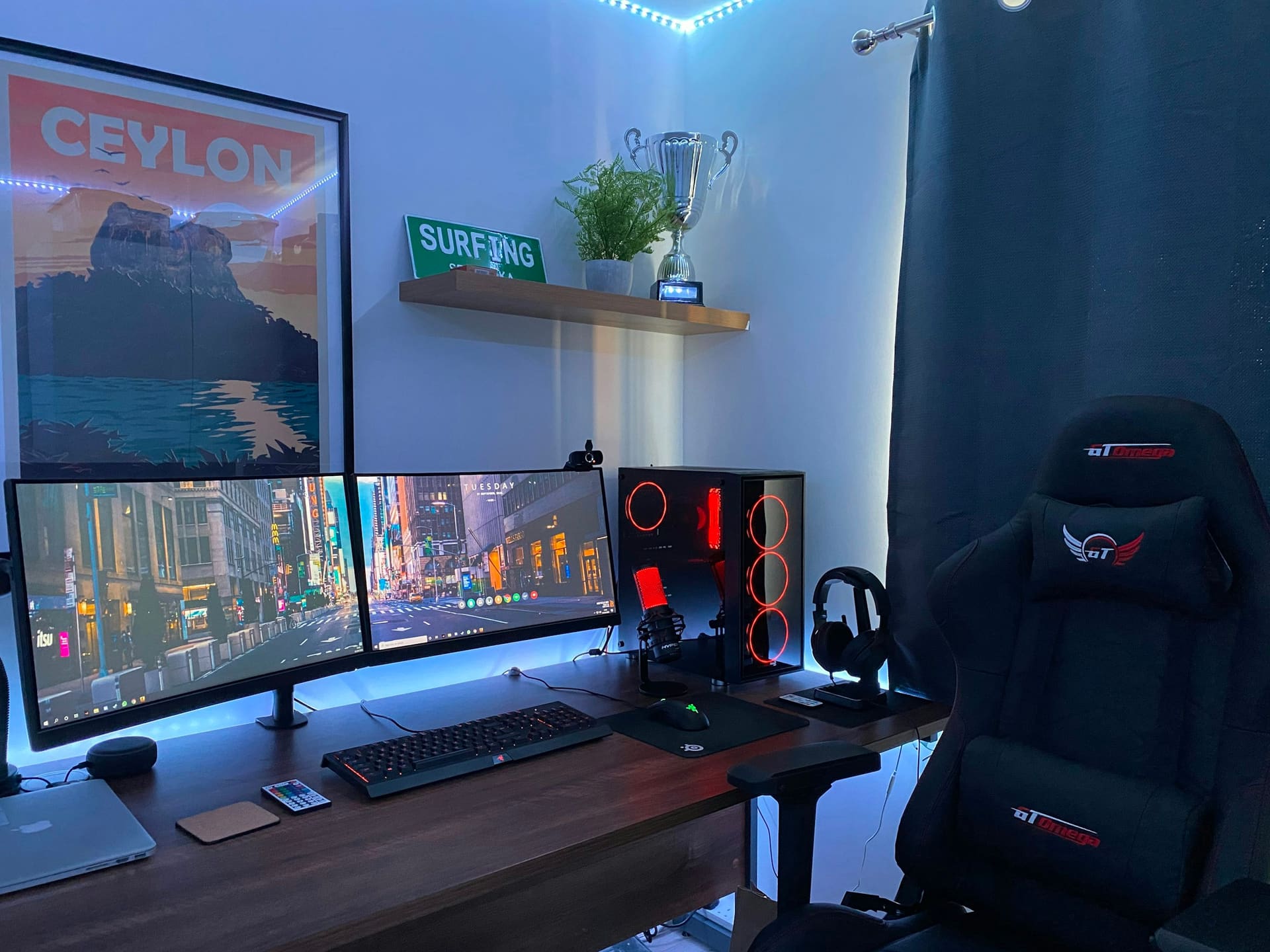
Two-screen position -
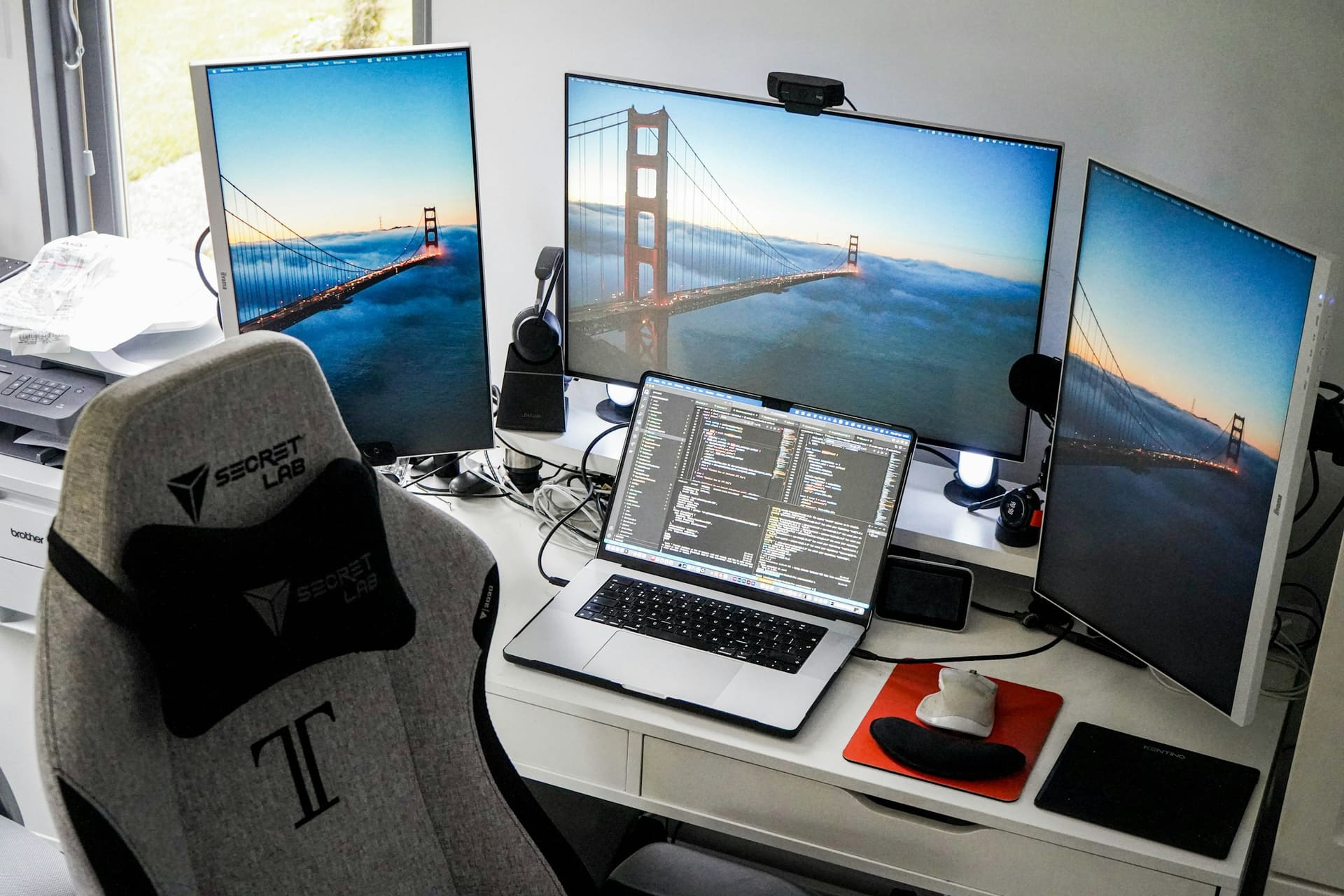
Multi-screen position -

Business technology context
Peripherals in context
-
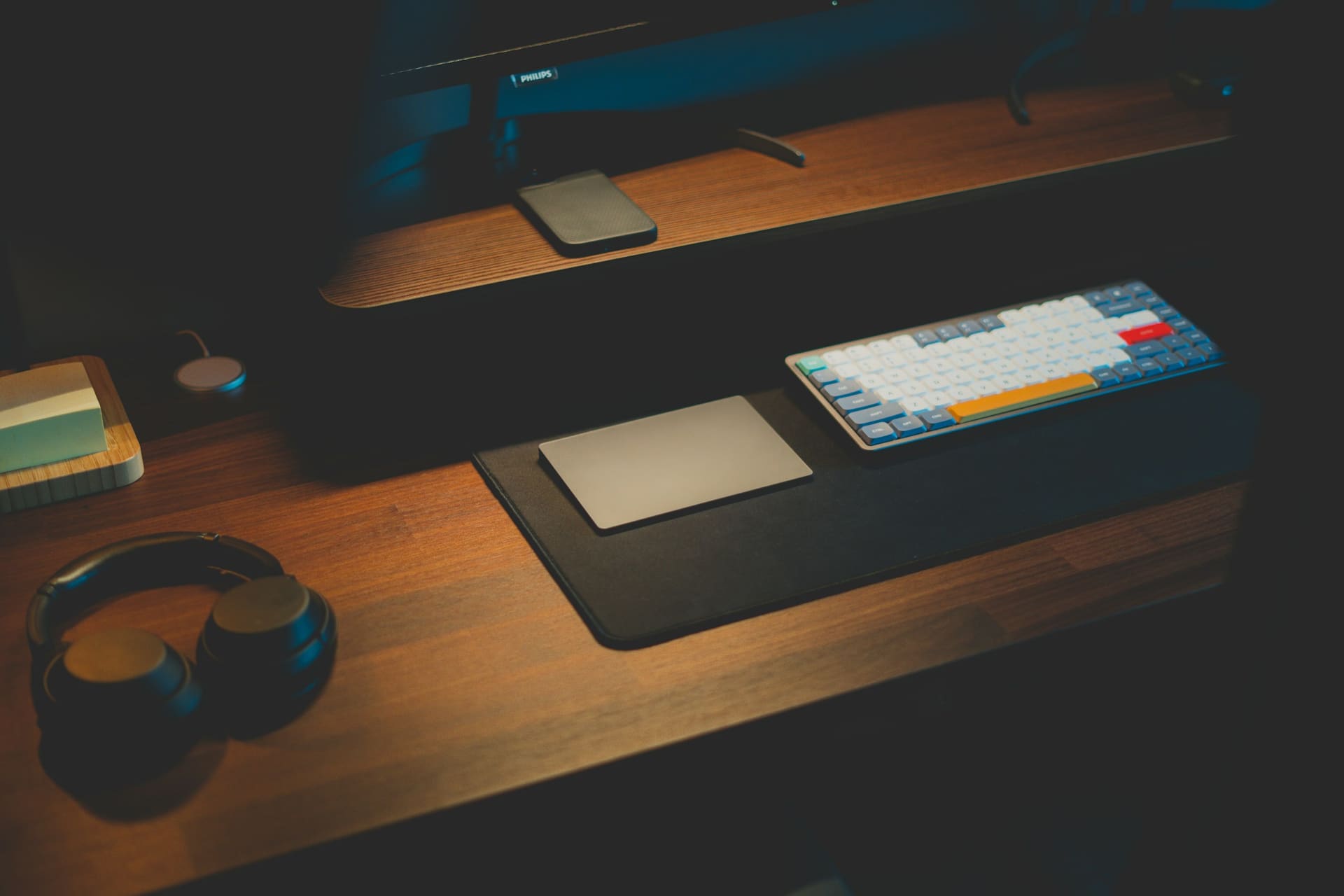
Audio for calls -

Camera where required -
Supporting peripherals
Peripheral ecosystem
The smaller components still have to fit the system.
Adapters, cables and docks are the items most often left off a requirement — and the items most likely to stop a new machine being usable on day one.
- compatibility
- connectivity
- role
- working style
- port requirements
- device compatibility

- KEYBOARD Layout, wired or wireless
- MOUSE Grip, precision, hand
- DOCK Ports the device lacks
- HEADSET Calls and shared offices
- WEBCAM Where not built in
- SPEAKERS Shared or personal audio
- STORAGE External capacity
- ADAPTERS Interface conversion
- CABLES Length, standard, routing
Text version: peripheral ecosystem
A radial diagram places USER at the centre — defined by role, environment and working style — with nine connected peripherals around it: keyboard (layout, wired or wireless), mouse (grip, precision, hand), dock (ports the device lacks), headset (calls and shared offices), webcam (where not built in), speakers (shared or personal audio), storage (external capacity), adapters (interface conversion) and cables (length, standard, routing).

Technology enquiry
Send us the desk, not just the device.
Screens, docks, input devices, audio and cables are quoted alongside the machine so the position works on arrival.
- DISPLAYS
- DOCK
- INPUT
- AUDIO
- ADAPTERS
- QTY