
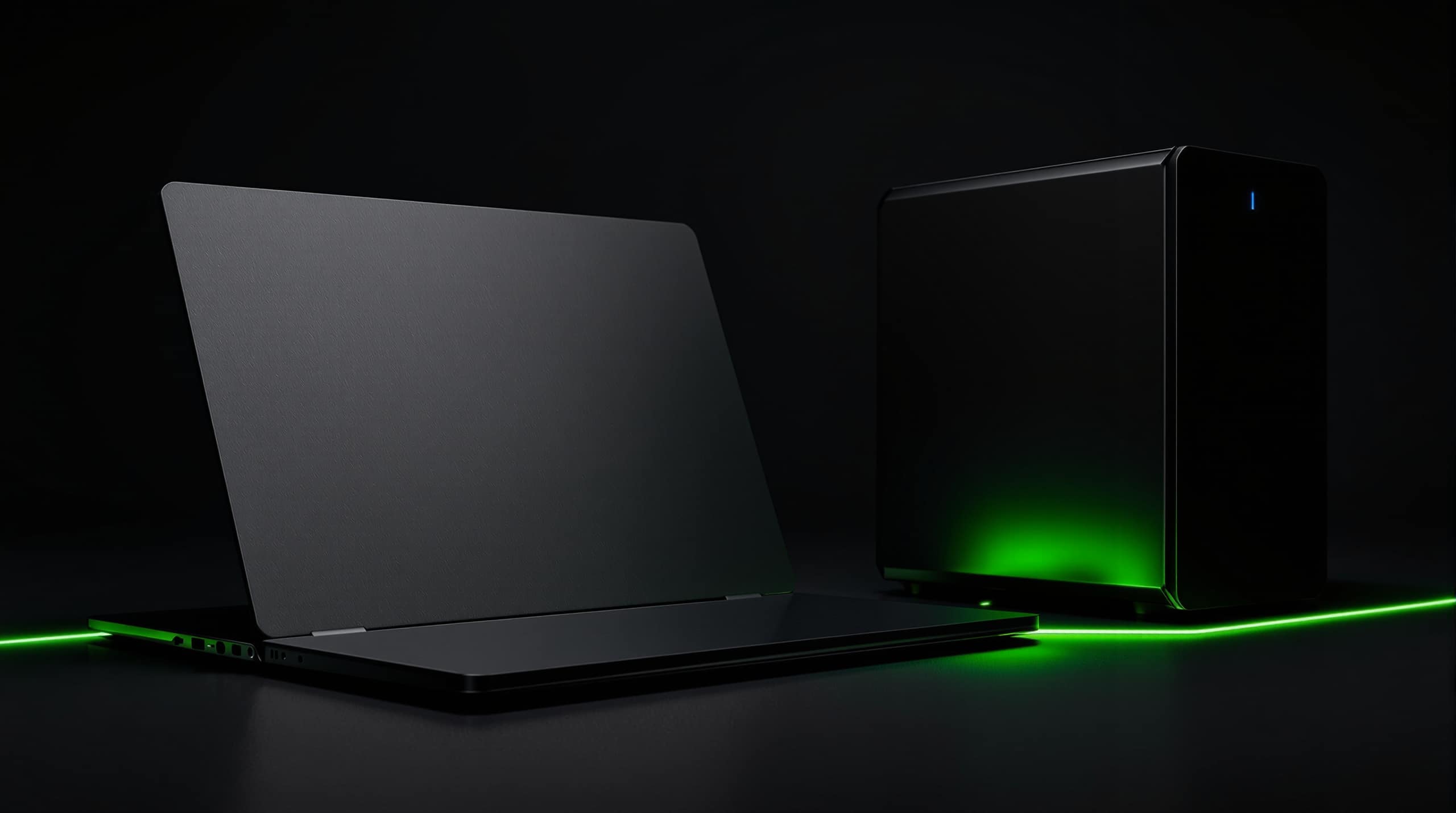
DESKTOP COMPUTERS
Fixed working positions where the machine stays put and the specification can be driven purely by the workload.
Commercial IT hardware & technology supply · Birmingham
Technology / 01
Desktops, business PCs, laptops, notebooks and workstation-class systems — selected around what the role actually does rather than what happens to be prominent on a comparison page.
Coverage
Every category below answers the same question differently: what does this person need the machine to do, and what does it have to work with?
Fixed working positions where the machine stays put and the specification can be driven purely by the workload.

Commercial-grade systems intended for a working life measured in years rather than months.

Portable machines where weight, battery behaviour, ports and docking arrangement all sit inside the requirement.

Sustained, demanding workloads where graphics, memory and thermal behaviour are part of the brief.
Requirement matrix
Completing these eight fields usually produces a tighter, cheaper and more appropriate answer than starting from a model number.
Requirement fields
Conceptual requirementWORKLOAD: What is it actually being asked to do? Applications in daily use, how many run at once, and for how long. MOBILITY: Where is the work done? Fixed desk, hybrid, multi-site or genuinely mobile. MEMORY: How much headroom does the role need? Driven by the software, not by a round number. STORAGE: What lives on the device? Capacity, interface and whether data sits locally or centrally. DISPLAY: What is it driving? Screen count, resolution and whether a dock sits in between. PORTS: What plugs in on day one? Existing peripherals, adapters and cable standards. NETWORK: How does it connect? Wired, wireless, or both, and what that requires on site. PERIPHERALS: What comes with it? Input devices, audio, camera and anything role-specific.
Compatibility before purchase
A product may be technically capable but still unsuitable for the actual environment. Compatibility should be confirmed before purchase — not discovered after delivery.
Does it physically fit and interoperate?
Will the applications actually run on it?
Can everything connect without an adapter chain?
Is there enough supply, and the right connector?
Does the connection path support it?
Does it fit where it has to live?
Will it hold up under actual use?
Are the conditions around it suitable?
Eight compatibility dimensions are reviewed before purchase, each with three checks: hardware (form factor, interfaces, existing system); software (minimum requirements, operating environment, licensing); ports (port types, port count, display outputs); power (supply capacity, connector type, headroom); network (speed, uplink, device count); physical space (desk or rack space, depth and mounting, access); workload (sustained demand, concurrency, expected lifespan); and operating environment (ventilation and heat, noise, shared or public space).
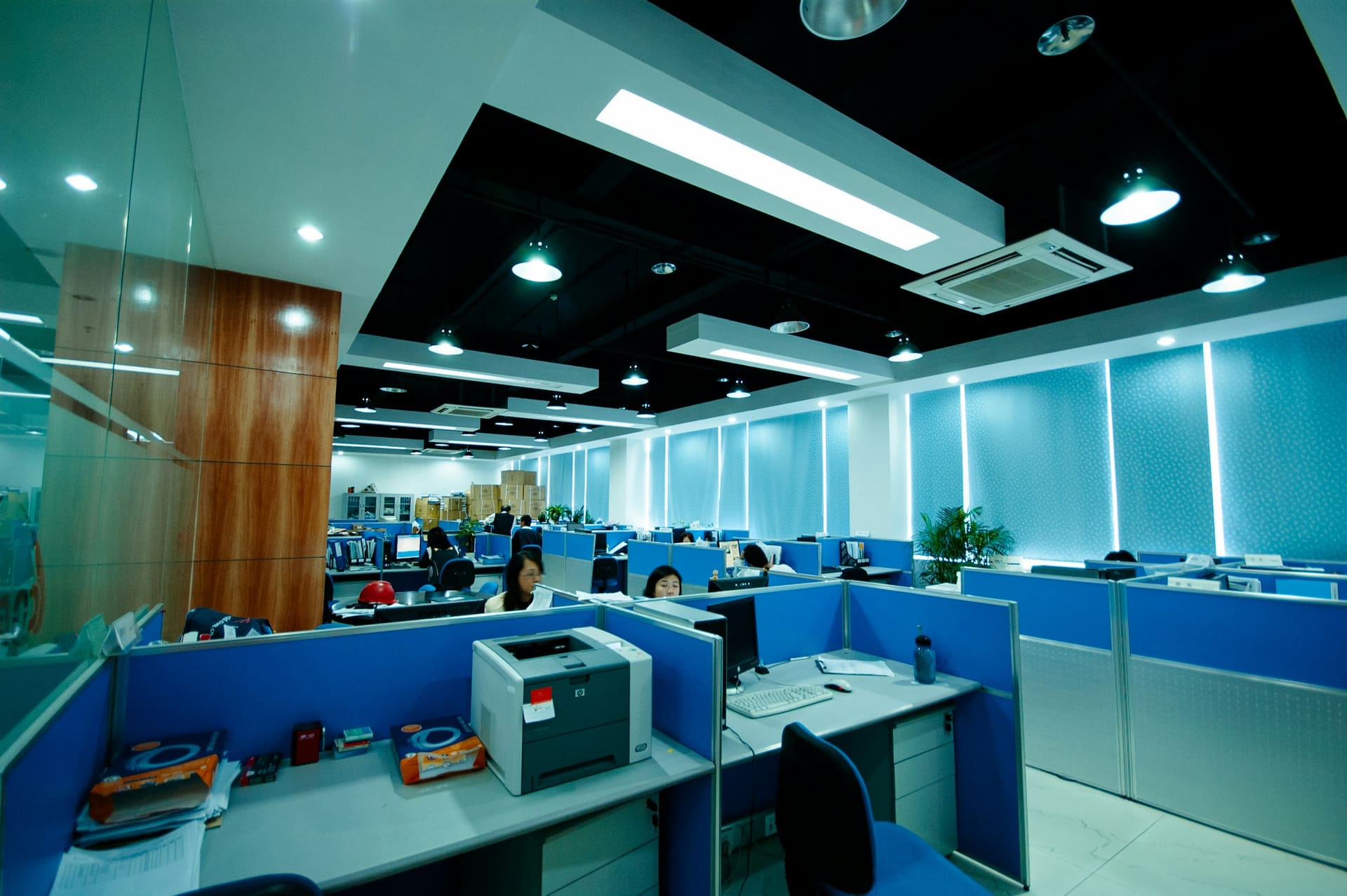
Business computing in context

Technology enquiry
Users, applications, quantity, environment and timeframe are usually enough to start a useful conversation.